Welcome to my blog. Thanks for visit my site.I request to you please share my blog of your friends.

Ads

Showing posts with label Software Tips. Show all posts

McAfee LiveSafe 2015 review: internet security suite offers good value protection for PCs, laptops and mobile

♠ Posted by Unknown in

PRICE WHEN REVIEWED

£80 inc VAT (unlimited, personally owned devices, 1 year subscription)

MCAFEE LIVESAFE 2015 REVIEW

McAfee LiveSafe 2015
MacAfee LiveSafe, the top level in Intel Security's internet security range, has a particular feature which may make it uniquely attractive – it covers as many devices as you can throw it at, as long as they're all yours.
The security software may be primarily Windows PC-based, but there are apps for OS X, Android and iOS offering various levels of protection and you can install them in any combination that suits.
The control screen in LiveSafe Internet Security, which is pretty much McAfee Internet Security 2015, is an uninspiring, mainly text-based affair, with large tiles for four main functions, including Your Subscription, and smaller ones for Data Protection, PC and Home Network Tools, and Parental Controls.
We wonder at these choices – will the average customer really be more interested in his/her subscription status (which only changes once a year) than vulnerability testing or parental control? Also see: Best internet security software 2014.

MCAFEE LIVESAFE 2015: INTERNET SECURITY TOOLS

McAfee LiveSafe Internet Security comprises AV and anti-spyware, web and email protection – including a two-way firewall – and comprehensive, encrypted password management via SafeKey and Personal Locker. This keeps a small number – 1GB across all your devices – of sensitive documents safe, online. There's a web browser guard and transaction protection, too
There are a few things missing that some other vendors include in their IS suites, the most obvious being any form of backup, local or online. McAfee Total Protection 2015 includes 5 GB of online storage from Mozy, but this hasn't been carried through to LiveSafe. The only mainstream backup is from the Android app to your PC. There's little in the tune-up area, either, except a vulnerability scanner which looks for out-of-date applications and drivers.
The Mac version is a shadow of the PC one, although the Mac OS is generally screwed down tighter against malware. It includes LiveSafe and SafeKey, which, in itself, is more than iOS devices get. There, there's just SafeKey and Personal Locker, where you can tap into that 1 GB of Cloud storage. Also see: Best antivirus 2014.

MCAFEE LIVESAFE 2015: ANDROID APP

McAfee LiveSafe 2015The Android App includes McAfee Mobile Security, which handles backup to PC, warns of dodgy websites and can take photos and wipe data remotely, as part of an anti-theft regime. There's also SafeKey and Personal Locker in this one.
When we ran tests on LiveSafe Internet Security, it took 1 hour 30 minutes to scan our 50 GB test basket and looked at 17,995 files, giving a scan rate of 3.33 files/sec.
This is the slowest we've measured, although the McAfee scan is said to include rootkits, which some others don't. Repeating the scan checked the same number of files, so there's no noticeable fingerprinting. (See also: Should you pay for internet security software?)
The software doesn't seem to put much of a resource hit on a PC, reducing the time for a 1 GB file copy by just 3 percent. This is reflected in the results from the German test site, AV-Test (www.av-test.org). In its most recent group test of Windows 7 packages, McAfee Internet Security, the malware engine inside LiveSafe, too, scored a perfect 18/18.
It didn't slow the AV-Test machines at all during their more wide-reaching usage tests and in the Protection category the software was 100 percent effective against its malware collection, and 99 percent effective on zero-day attacks. Under Usability it gave no false detections, warnings or blockages at any time during testing. It's one of the best set of results the site has posted. Also see: Best internet security software 2014.

SPECS

OUR VERDICT

If you run a couple of home Windows PCs, a Mac, a tablet and a smartphone, or a similar combination, McAfee LiveSafe 2015 is an economical way of protecting them all and providing anti-theft facilities on the mobile devices. While the feature set of the IS component of the package may lack back-up and PC tune-up, the power of its AV protection can't be denied.

Convert FAT32 to NTFS Without Formatting or Losing Data

♠ Posted by Unknown in
You have a flash drive or probably an external hard drive that currently has FAT32 file system and you want to change it to NTFS, because FAT32 does not support handling large files (over 4GB) or it is just simply old for your taste but there is just one problem, you don't want to lose your saved data. This article is for you then as it explains exactly how you can achieve seamless transition from FAT to NTFS without involving any data loss.

FAT32 to NTFS
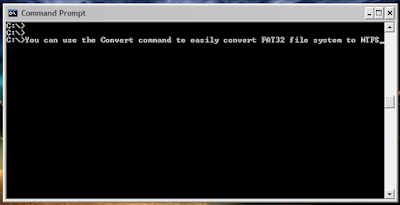
While it is generally recommended to use the NTFS file system because of its stability, security and lesser defragmentation time, most of us end up using FAT32 because that is what most disks are preformatted with. Unless, we notice the “Not enough disk space error” despite disk space being available, we don't bother to change the file system. Moreover, most of us don't change it because of the risk of losing important data and lack of time (read laziness). As Microsoft was aware of this scenario, they added a capability in the command prompt to overcome this by executing a simple command. There are many software that support this too but the Convert command is one of the easiest ways to do so. Follow the steps below to know how:-

Important: While this method works perfectly, I would still advise you to backup your data in case anything goes wrong.

FAT 32 to NTFS Conversion Steps

1) Go to Computer, and note the name of the drive whose file system you wish to convert.
2) Click on Start.
3) Type cmd in the search bar if you use Windows 7, Windows 8, Windows 8.1 or Windows Vista. If you use Windows XP, click on Run and then execute cmd. 
4) Execute "chkdsk h: /f " (without quotes) where H is the letter of the drive to undergo conversion. This checks the drive for errors and fixes them automatically.
5) Execute "Convert H: /FS:NTFS" (without quotes). H is again the letter of the drive to be converted.
6) The command prompt will start the conversion process and after a few minutes, CMD will say that conversion was successful.
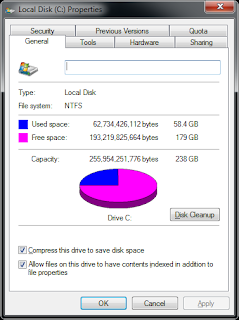
7) You can check it in the properties of the drive through right click<Properties.
Convert FAT to NTFS
This command can also be used to convert FAT16 disks and works on Windows 8, Windows 8.1,Windows 7, Windows XP and Windows Vista. I converted my flash drive's file system using these steps and it worked flawlessly. It is interesting to note that this method cannot be used to reconvert NTFS file system back to FAT32. To reconvert back to FAT32, you will need to format the entire drive which will definitely cause data loss.

Recover Deleted files in Windows with Free Tools

♠ Posted by Unknown in
Have you ever deleted a file that you did not wish to and wanted to recover it but did not find it in the recycle bin? You probably deleted it permanently with Shift+Delete or emptied the Recycle Bin. Now what? Don't worry, you may still have a chance to get it back. This article lists some free software that can recover deleted files from your hard drive or any other storage device instantly.

But how do the software mentioned below undelete deleted files?
recover deleted files
When files are deleted, Windows does not delete them from your hard disk. It marks the storage space as empty for new data to be written and deletes the index entry that tells the location of those files. Unless, new files are written on that space, the deleted files are still recoverable. That's what allows these software to recover deleted files.


There are many free software that allow users to do this. Some of them are given below:-

1) Pandora Recovery
recover deleted files in Windows
Pandora Recovery is a free software that offers a wizard based interface for recovering files. It allows you to browse a drive's individual folders to look for deleted files. It also allows you search for a deleted file based on its name, file size, creation date and last access time. Its deep scan allows you to recover files that other software might have missed. Although deep scan does not return a file's original name and location, it still is effective to recover data from drives with corrupted file tables and drives that were recently formatted. It can even recover data from CDs and DVDs. 

2) TOKIWA DataRecovery
undelete files in Windows
At just over 200KB, TOKIWA DataRecovery is the smallest file recovery program in the market. It supports undeletion from FAT 12, FAT16, FAT32 and NTFS file systems. It also supports recovering NTFS compressed and EFS encrypted files. This software supports Windows and is portable as well. It also has a file shredder that allows you to wipe out files in a manner that they cannot be recovered again.

3) Recuva
undelete files
Another great freeware, Recuva offers a wizard based interface to unerase files. Recuva offers scanning deleted files based on their type (music, pictures, videos etc.). It also allows deep scanning in case a file you deleted is unrecoverable via normal search. Like TOKIWA DataRecovery, Recuva also offers securely deleting files. Recuva also has a portable versionthat you can keep in your flash drive.

All of these recovery software support recovery from memory sticks, digital camera cards and MP3 players. They support undeleting all types of pictures, software, movies and documents from both FAT and NTFS formatted drives. They work on Windows 8.1, Windows 8, Windows 7, Windows Vista and Windows XP.

Free File Recovery Software
Some important tips to increase the chances of getting your deleted files back:-

1) When a file is deleted accidentally on a storage device, make sure that you don't do anything on it as doing that would increase the chances of new data being written over your deleted files; which would make file recovery impossible.

2) If you have deleted files on your main computer (the one you are using right now), do not browse the internet, download new software or shut it down. Keep it running and go to another computer, download one of the software mentioned above that is portable and save it on a flash drive. Then plugin the flash drive in your current system and perform file recovery. Regardless of whether you accidentally delete files a lot or not, make sure to always have that software in your flash drive in case you accidentally delete important files.
3) If one software fails to recover your deleted file, it does not mean that another one wouldn't recover it too.

Recover Windows Password With Free Password Recovery Tools

♠ Posted by Unknown in
There are times when you forget your Windows password or someone changes it without your knowledge. In such situations, you will be locked out of Windows. To regain access, you can use some password recovery software to recover your Windows password. This article contains a list of some such password recovery software.

Recover Windows Passwords Free
Note:  Most of these software are available as Live CD's. (For non technical readers, a Live CD is a compact disk that contains a bootable operating system that you can use from the CD itself, without having the need to install it.)

Ophcrack
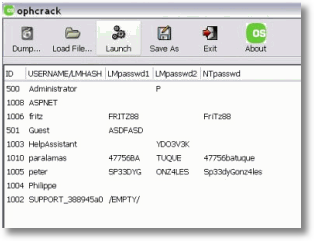
Ophcrack offers one of the best free password recovery solutions in the market. Ophcrack comes in two versions: a stand alone installer and a Live CD. The stand alone installer requires you to additionally download separate rainbow tables whereas the Live CD already has them. As the stand alone installer uses about 1.5GB of rainbow tables, it offers much better recovery. However, the download size is certainly an issue. Also, the Live CD version is a bit easier to use for cracking passwords. 

recover Windows passwords

So, I will discuss only the Live CD version. You must choose the right version of Ophcrack Live CD for your operating system. If you use Windows XP, the download (Ophcrack XP Live CD) is nearly 415MB whereas for Windows 7, Windows Vista and Windows 2008, it (Ophcrack Vista Live CD) is about 495MB. Ophcrack may be identified as a virus by your anti-virus software. That is a false alert and should be reported to the antivirus company.

To crack passwords with Ophcrack, download the iso file for the appropriate Live CD and burn it on a compact disk using an image burning software. If you use Windows 7, you can use your OS's inbuilt image burning software.

Then boot the computer whose password you wish to recover using that disk. Ophcrack is fully automatic and you don't need to do anything from your side. It will automatically detect users and start the password recovery process. Then, it will display their passwords on the screen. You can note them for logging in to the locked account.

Ophcrack recovers passwords nearly 99 times out of 100. Ophcrack is limited to recovering passwords upto 14 characters.

PC Login Now
If you mind downloading large amounts of data Ophcrack needs, then PC Login Now is an excellent alternative. In addition to its smaller size, its password recovery is one of the fastest and the easiest I have seen. However, PC Login Now does not actually recovers your password. It resets it.

File Recovery Windows free

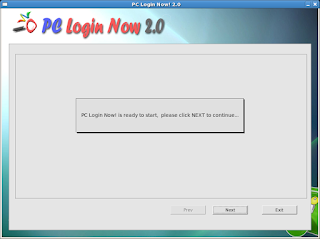
To get started, you will need to download a nearly 60MB exe file from the PC Login Now website. Open the downloaded file to extract the ISO image of the Live CD. Burn the ISO file to a compact disk and then, boot your computer using the burned disk. PC Login Now will automatically load. Follow the on-screen instructions to choose your operating system and then the username whose password you wish to reset.

Then, choose the Password is empty checkbox to remove your password. Then, PC Login Now will ask you to reset another user's password. Choose No and then OK to restart your PC. Use a blank password while logging in and you are good to go. PC Login Now works on Windows 7, Windows XP and Windows Vista.

Offline NT Password Recovery & Registry Editor
Another open source recovery software that resets forgotten Windows passwords. Offline NT Password Recovery is also needed to be installed on a CD before working. However, there is also a version that can be installed on USB drives to create a bootable usb drive (if your motherboard supports it). Its small size (nearly 3MB) makes it an excellent alternative to other bulky recovery options.

Password Recovery Windows

It just has one con. Its interface being completely text based is not for the lovers of GUI based systems. To reset your password, just boot into your computer using the Live CD or the USB drive and follow the on-screen instructions. Your password will be changed to a blank one. This software works on Windows 7, Windows XP, Windows NT and Windows Vista. It also supports 64 bit versions of these Operating systems.

Cain & Abel
Cain & Abel is another free password recovery software. Unlike the software mentioned above, Cain & Abel needs to be installed on another administrator account on the computer containing the locked account. It also requires separate downloading of rainbow tables. Since, you can use inbuilt Windows functions to reset a password if you have access to a working admin account on the computer, I see no use for this software unless you are desperate about recovering your password. Cain & Abel works only on Windows XP.

Creating Your Own Portable Software

♠ Posted by Unknown in
If you often need to access computers that belong to other people or other offices, you may have a hard time working the way you need to -- you may not have access to the programs you usually have. Google tries to make working on multiple computers simpler by automatically bringing your browsing history and bookmarks to any installation of Chrome when you sign in. You also have Google Docs. For other programs, though, you're usually on your own.
Carrying the software you need with you as you move from one computer to another may seem like an option. The problem with this approach is that you wouldn't usually be able to install your programs on someone else's computer. It would also take time. The right approach to this problem, then, is to carry the software you need, in portable form.
What is a portable program?
Programs don't necessarily need to be installed on a computer's hard drive before they are run. Installing is usually only desirable for the convenience that it offers. With most programs, you could easily store the executable file and other supporting software in the form of a single self-contained file on a portable hard drive, flash drive or anything else, and run them directly off these storage devices. The registries of the computers that these programs are run on are not altered.
Many websites on the Internet offer useful inventories of programs for common needs -- LibreOffice Portable is a Microsoft office replacement; Notepad++ works in place of Notepad; Inkscape replaces Adobe Illustrator and GIMP replaces Photoshop.
What if you want the real thing and not a replacement?
While freeware replacements for popular programs get a few things done well, they cannot offer the depth and functionality of the big-name programs. If you wish to carry those programs around, you'll need to make them portable yourself, using up portable application creator.
How a portable application creator works
If you're interested in making your own portable applications, many free options exist, Enigma Virtual Box, Evalaze and Cameyo being among the most popular. When you direct one of these freeware programs at any Windows software, they gather all the necessary files together and create a single executable application. You get to launch the program and use it on any Windows computer as if it were installed on that computer.
It's as simple as that
Before you create a portable version of a program, you need to make sure that the computer you create it on doesn't have a regular version of the program already installed. It can cause software conflicts to have the program installed on it.
You also need to remember that portable application creator s don't usually create fully portable applications with their default settings. Often, the settings they come with allow the portable applications that they create to leave a few traces behind on any computer that they are used on. You need to select the right options to make sure that no registry changes or other traces are left behind.
Once you have these simple settings applied, you'll be on your way to carrying an entire computer's worth of software around with you on a flash drive.